
Samsung Wallet/Pay (Watch)
Samsung Electronics Co., Ltd.Lifestyle
3.51.94K Reviews
- Version
- 8.0.40.20506
- Installs
- 50.00M
- Age Rating
- Everyone
Screenshots
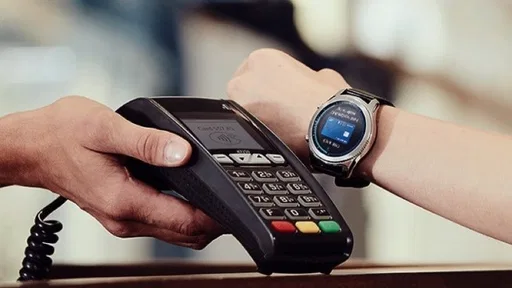
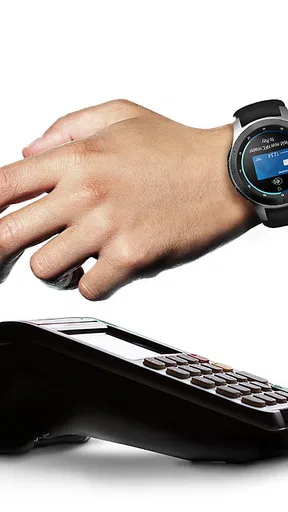
Our Review of Samsung Wallet/Pay (Watch)
 Analysis by Appyee
Paying with a phone or smartwatch sounds simple until the first transaction refuses to go through. In my experience, Samsung Wallet is at its best when it is prepared before I reach the checkout, not when I am already standing at a reader with a queue behind me. That makes this Lifestyle app from Samsung Electronics Co., Ltd. useful, but also slightly less effortless than its short store description suggests.
Samsung Wallet brings payment cards and related wallet items into one Samsung-focused experience. It is free, rated for Everyone, and available on devices running Android 9 or newer. The app has reached over 50 million installs, which tells me it is not a niche experiment. Still, its usefulness depends heavily on the Samsung phone, watch, bank card, region, and payment terminal involved.
I reviewed it as the kind of app I would recommend to a friend who already uses a compatible Samsung device and wants to stop carrying a physical card everywhere. I would be more cautious with someone who changes phones often, relies on several banking ecosystems, or expects every card and every watch setup to work without checking compatibility first.
Where the first payment usually gets stuck
I find that the first payment is most likely to stall before the reader ever gets involved: a card may still need issuer approval, or the phone and watch may not be configured in the same way. In this section, I’ll separate those early hurdles from an actual checkout failure, so the next checks focus on the right part of the setup.
The app is not the same thing as universal card support
The most important expectation to set is that installing Samsung Wallet does not automatically make every debit, credit, loyalty, or transit card usable. The card issuer and local availability matter. A card may work in the bank’s own mobile app but still need separate enrollment here, while another card may not be eligible at all.
I would therefore begin with the card I actually intend to use most often, rather than importing every card at once. That makes failures easier to diagnose. If the first card cannot be added, I know the problem is probably related to issuer support, account verification, device compatibility, or regional availability instead of assuming the entire wallet is broken.
Phone payments and watch payments are different routines
Using the phone is usually the easier starting point because the phone is where the wallet is installed and configured. A watch introduces another layer: the watch must be compatible, paired correctly, and ready to authenticate at the moment of payment. The fact that an account works on the phone does not mean the watch is automatically ready to pay.
This distinction matters when someone says, “It works on my phone, so why does my watch fail?” I would treat the watch as a separate payment setup, not as a remote screen for the phone. Check its connection, wallet setup, card availability, and authentication before blaming the store terminal.
Readers do not all behave identically
Contactless payment depends on the reader recognizing the device at the right moment. A crowded checkout, a reader that is still processing another transaction, or holding the phone too far away can create a failure that looks like an app problem. I have found it more useful to pause, wake the wallet, authenticate, and hold the device steadily near the reader than to repeatedly tap in different places.
With a watch, positioning becomes even more important because the antenna is in a smaller body and the angle can vary. I would keep the watch face near the contactless area for a moment instead of brushing past it quickly. If the terminal displays a clear decline, that points in a different direction from a reader that never reacts at all.
Why the average rating deserves context
The app currently has an average rating of 3.5 from around 40 thousand ratings, alongside roughly 1.9 thousand written reviews. I read that as a sign of a practical app with uneven experiences rather than a simple success-or-failure story. Payment apps are judged during stressful moments, so compatibility and setup problems can weigh heavily on opinions.
Samsung Wallet is free, but “free” does not remove the costs of troubleshooting. The real investment is time spent checking the card issuer, preparing the device, and learning what to do when a terminal rejects a payment. For a person who already owns a Samsung phone and a supported card, that trade-off can be worthwhile. For someone wanting a platform-neutral wallet, it may be the wrong first choice.
Setup checks that prevent avoidable trouble
I like to make a few deliberate checks before relying on a new payment setup, especially when I plan to use a watch as well as a phone. The goal here is to catch mismatches—such as an unfinished card verification or an unprepared wearable—at home, where there is time to sort them out calmly.
Start with the device, account, and software
Before adding a card, I would make sure the Samsung phone is signed in to the relevant Samsung account and is running a supported Android release. The current version listed for the app is 8.0.40.20506, while the minimum operating system is Android 9. Keeping the phone’s system and the wallet updated is sensible because payment behavior can depend on the device software, not only the app itself.
I would also avoid beginning setup while rushing out the door. Have the physical card nearby, use a stable connection, and be ready to complete any verification requested by the card issuer. If a bank sends a confirmation through its own app or another channel, that step is part of enrollment rather than an optional extra.
Add one card and test the complete path
A useful setup method is to add one everyday card, finish the verification, and then test a small normal purchase when there is time to recover. This is more informative than adding several cards and discovering later that only one failed. It also shows whether the card is ready for actual payment rather than merely visible in the wallet.
After the first successful use, I would add secondary cards one at a time. This approach is especially helpful for families or people who carry personal and work cards. It keeps the wallet organized and makes it easier to identify which issuer needs attention if enrollment stops halfway.
Prepare the watch separately
For watch payments, I would not wait until the phone is unavailable. Pair the watch, open its wallet setup, and confirm that the intended card is present there. Then practice the basic sequence at home: wake the watch, open the payment function, authenticate if requested, and hold it near a compatible reader.
The practical reason for this rehearsal is not speed; it is confidence. A watch can be convenient when I am carrying groceries, exercising, or leaving the phone in a bag, but only if I know how to bring up the payment screen without searching through menus. If the watch has been reset, unpaired, or replaced, I would expect to review its wallet setup again rather than assuming the old arrangement survived.
Keep a backup payment method
I would never make a digital wallet the only way to pay on an important trip. Carrying a physical card or having another payment option avoids turning a low battery, a damaged device, a rejected card, or an incompatible terminal into a serious problem. That is not a criticism unique to Samsung Wallet; it is a sensible rule for any device-based payment method.
This is also where Samsung Wallet differs from a physical wallet. A physical card usually works independently of phone software and watch pairing. The digital version is faster to carry and can reduce clutter, but it adds dependencies. I like the convenience, yet I would not pretend those dependencies disappear just because the app interface looks polished.
Understand what a successful setup looks like
A card appearing in the app is encouraging, but I treat a completed verification and a successful contactless purchase as the real finish line. If the card is listed but the terminal rejects it, I would check whether the card is enabled, whether the issuer has approved mobile payments, and whether the terminal accepts the relevant contactless method.
I would also check that I am choosing the intended card before paying. When several cards are stored, selecting the wrong one can look like a general wallet failure even though another card would work. A quick review of the selected card before authentication is a small habit that prevents an awkward second attempt.
How I recover when a payment fails
When a payment fails, I avoid making several changes at once because that can hide the cause and create more setup work. I’ll walk through a simple way to tell whether the issue is with opening the wallet, the reader’s response, or the card’s approval, then choose a measured next step.
Separate the failure into three questions
When a payment fails, I ask three simple questions: did the wallet open, did the reader react, and did the issuer approve the transaction? These stages point toward different fixes. If the wallet does not open, I focus on the phone or watch. If the reader does not react, I focus on positioning, terminal readiness, or contactless acceptance. If the reader reacts but the payment is declined, the card issuer or account is more likely to be involved.
This method is more useful than immediately reinstalling the app. Reinstallation can remove a symptom temporarily while leaving the actual cause untouched. It may also force me to repeat card enrollment, so I would reserve it for persistent app behavior after simpler checks have failed.
Recover from a phone-side problem
If the phone does not respond, I would first wake and unlock it as needed, open the wallet deliberately, and confirm that the selected card is available. I would then try the reader again with the phone held still. If the app appears frozen, closing and reopening it is a reasonable general step, followed by restarting the phone if the behavior continues.
I would avoid changing several settings at once. For example, if I update the app, restart the phone, remove the card, and add it again in one session, I lose the ability to tell which action helped. A calm sequence produces a clearer result and reduces the chance of creating a second setup problem.
Recover from a watch-side problem
For a watch, I would check whether it is still paired with the phone and whether the payment screen can be opened independently. If the watch was recently reset or disconnected, I would repeat the watch-specific setup rather than repeatedly tapping the terminal. I would also make sure the watch has enough power for the situation; a payment method that depends on a wearable cannot help when the wearable is unavailable.
If the phone payment succeeds but the watch payment does not, I would keep using the phone while investigating the watch. That comparison is valuable because it narrows the issue to the wearable path. Conversely, if both devices fail with the same card at the same terminal, the card or merchant environment becomes more suspicious.
Know when to contact the issuer
A declined transaction is not automatically an app defect. The issuer may have blocked the transaction, require verification, or reject the card for reasons unrelated to mobile wallet software. I would check the bank’s own app or contact the issuer when the wallet opens normally but the payment is declined repeatedly.
The same applies when a card cannot be added. Samsung Wallet can provide the place where enrollment happens, but the issuer controls whether its card is accepted for that use. If the enrollment screen directs me toward verification, I would complete that process rather than trying random workarounds.
Use a controlled comparison
One of the most useful tests is to try the same device and wallet at another contactless reader, then try another supported card at the original reader if possible. This creates a simple comparison without requiring technical tools. A single failed terminal tells me very little; repeated failures across different readers and cards tell me much more.
I would record the exact pattern mentally: phone or watch, selected card, reader response, and whether the transaction was declined or simply ignored. That short description is far more helpful when asking the bank or Samsung for support than saying only that “Wallet does not work.”
When Samsung Wallet is not the cause
A declined or ignored payment can originate beyond the wallet, so I look for patterns before blaming the app. In this section, I’ll compare the device, card, and terminal in practical ways that help narrow the cause—and indicate when the merchant or card issuer is the more useful place to turn.
The merchant terminal may be the weak link
Some checkout readers are slow, poorly positioned, or not accepting contactless payments at that moment. A cashier may need to activate the reader again, or the terminal may be waiting for a previous card to be removed. If another contactless card also fails, I would stop treating the phone or watch as the main suspect.
There is also a difference between a terminal that accepts contactless payments and one that accepts every type of card transaction. A merchant may support contactless in general while still having restrictions tied to the card network or transaction type. In that situation, Samsung Wallet cannot change the merchant’s configuration.
The card or account may be responsible
If the physical card is declined in the same setting, the wallet is probably not the root cause. The account could be restricted, the card could be expired, or the issuer could require an action. I would test the card through the bank’s normal channels before deleting it from the wallet.
Deleting and re-adding a card is not my first response to a decline because it can turn a temporary issuer issue into a longer enrollment process. I would only revisit enrollment after confirming that the card itself is active and eligible.
The phone or watch environment matters
Device changes can create confusion. Moving from one Samsung phone to another, resetting a watch, or changing the pairing relationship can make an old setup feel inconsistent. I would review the current device rather than relying on how the previous one behaved.
That is a key difference from simpler payment alternatives that focus on one phone and one card. Samsung Wallet becomes more useful when Samsung devices are already part of my daily routine, but the same ecosystem focus can feel restrictive if I regularly switch between manufacturers or want one identical process across different platforms.
Privacy and convenience need a personal balance
I like the idea of carrying fewer physical cards, but I would still think about how much of my payment routine I want tied to a phone and watch. A digital wallet is convenient when the device is nearby and ready; it is less convenient when I need to troubleshoot account verification, pairing, or battery issues.
For someone who wants the broadest possible compatibility, a bank’s physical card remains the simpler fallback. For someone already invested in Samsung hardware, the wallet can be a practical middle ground. The right choice depends less on the app’s headline promise and more on whether the surrounding devices and cards fit together.
My practical verdict after using it
Samsung Wallet is a sensible Lifestyle app for Samsung owners who want phone and watch payments in a single Samsung-centered workflow. I appreciate the convenience of preparing a card once and then paying without reaching for a physical wallet. The watch angle is particularly useful in moments when the phone is buried in a bag, although it requires its own preparation and deserves a backup plan.
My strongest recommendation is to treat setup as a checklist, not a single tap: confirm the Android requirement, update the current app, use a supported card, complete issuer verification, configure the watch separately, and test before relying on it. That approach prevents most of the frustration I associate with payment apps, especially the mistake of discovering a compatibility issue at a busy checkout.
The app’s 3.5 average and large install base reflect its mixed reality: it is established and widely used, yet payment success still depends on factors outside the interface. I would not choose it solely because it is free, and I would not dismiss it after one failed terminal. I would judge it by repeated use with my own card, phone, watch, and usual merchants.
Samsung Electronics Co., Ltd. has made a useful tool for people already living inside its device ecosystem. It is not the best fit for someone seeking a completely brand-neutral wallet or someone unwilling to keep a physical backup. For everyone else, the best reason to use it is dependable everyday convenience after careful setup, not the expectation that every payment situation will be automatic.
Verdict
Strengths of Samsung Wallet/Pay (Watch)
- Quick contactless payments from a compatible Galaxy Watch
- Works without carrying your phone or physical wallet
- Supports cards, passes, tickets, and memberships in one place
- Security features include tokenization and device authentication
- Useful for checking supported cards and payment activity on the watch
Limitations of Samsung Wallet/Pay (Watch)
- Requires a compatible Samsung Galaxy Watch and supported smartphone
- Card and bank availability varies by country and financial institution
- Some features need an internet connection or phone pairing
- Older watch models may have limited Samsung Wallet support
- Setting up cards on a watch can be less convenient than on a phone
Other Releases by Samsung Electronics Co., Ltd.
View All
Samsung Calendar
Productivity4.1

Samsung Browser
Communication3.6

Samsung Music
Music & Audio3.8

SmartThings
Lifestyle4.6
Similar Picks in This Category
View AllSmartThings
Samsung Electronics Co., Ltd.4.6

Google Home
Google LLC4.0

Pinterest4.2

Astrotalk - Talk to Astrologer
Astrology & Horoscope4.7

My Verizon
Verizon Consumer Group4.5

Samsung Wallet (Samsung Pay)
Samsung Electronics Co., Ltd.4.1
Frequently Asked Questions
What is Samsung Wallet or Samsung Pay on a Galaxy Watch?
Samsung Wallet, formerly known in many regions as Samsung Pay, lets you use a compatible Galaxy Watch to make contactless payments at supported terminals. After adding an eligible debit or credit card through the Galaxy Wearable app or Samsung Wallet, you can select the card on your watch and authorize the transaction with your PIN. Availability and features depend on the watch model, phone, country, bank, and payment network.
Which Samsung Galaxy Watches support Samsung Wallet payments?
Support depends on the exact Galaxy Watch model, software version, region, and whether the watch includes the required NFC hardware. Many recent Galaxy Watch models support contactless payments, while some older, Bluetooth-only, or region-specific versions may have limited functionality. Before downloading or setting up the service, check Samsung’s compatibility list and confirm that your bank and card issuer support payments on wearable devices.
Can I use Samsung Wallet on my Galaxy Watch without my phone nearby?
In many cases, you can pay with a compatible Galaxy Watch even when your phone is not nearby, provided the card has already been registered and the watch has been properly configured. The watch normally stores secure payment credentials rather than your full card details. However, setup, card verification, software updates, and some account functions still require the connected phone, internet access, or additional approval from your bank.
Is Samsung Wallet on Galaxy Watch safe for contactless payments?
Samsung Wallet uses security features such as tokenized card information, device authentication, and a watch PIN to help protect payments. Your actual card number is generally not shared directly with the merchant during a transaction. If the watch is removed from your wrist, payment access may be restricted until the PIN is entered again. Even so, you should report a lost watch and contact your bank promptly.
How do I add a card and pay with Samsung Wallet on my Galaxy Watch?
First, install or open Samsung Wallet and the Galaxy Wearable app on your compatible Samsung phone, then follow the instructions to add and verify an eligible card. On the watch, open Samsung Wallet, choose the card, and authenticate with your PIN when prompted. Hold the watch near the contactless reader until payment is confirmed. Some merchants, banks, transit systems, and countries may not support every payment type.
